Matching Text asks learners to type an answer instead of picking one from a list. Immediate feedback confirms a correct answer the moment it is typed, so a mistake can be corrected before the page is submitted.
Typed answers or a dropdown?
Use Matching Text when learners should recall and type an answer instead of recognizing it in a list, such as vocabulary, definitions, or short exact answers. Use the regular Matching question when you would rather offer a fixed set of choices to pick from.
Turn on both settings
Create or edit a Matching Text question, add the prompt-and-answer pairs, and turn on Immediate feedback in the question settings.
- Immediate feedback
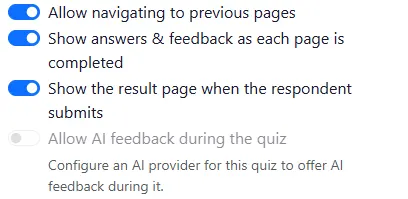
- Show answers & feedback as each page is completed
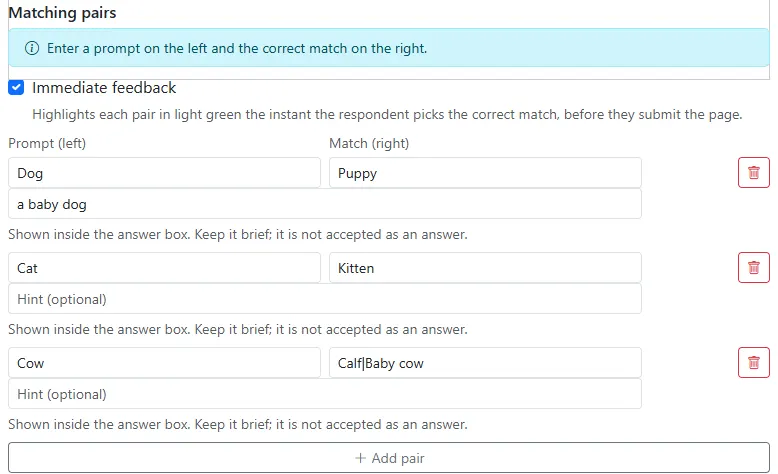
Then open Configure and enable Show answers & feedback as each page is completed. Both settings are required: the quiz-level setting permits feedback during an attempt, while the question-level setting chooses this Matching Text interaction.
Write answers that accept real typing variation
A typed answer is checked case-insensitively with leading and trailing spaces trimmed, so Canine, canine , and CANINE are all accepted. Separate an answer's accepted alternatives with a vertical bar, for example Canine|Dog, to accept more than one correct spelling or synonym.
Add an optional hint
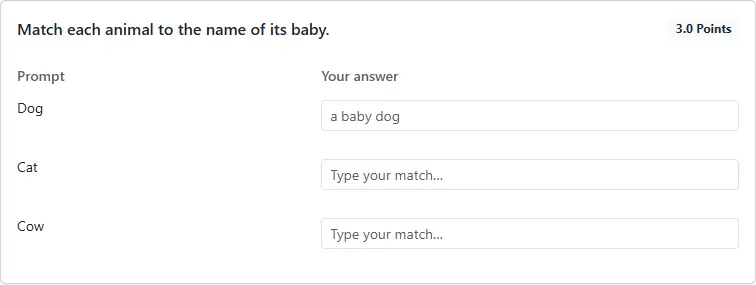
Each pair can have a short hint, shown as the answer box's placeholder text. A hint is never accepted or graded as an answer; it only steers what the learner types.
What the learner sees
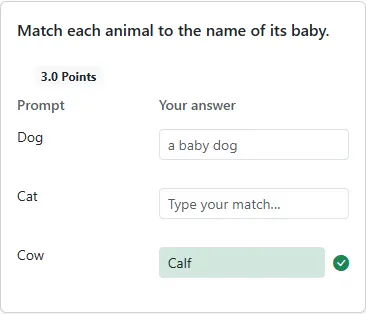
The learner types an answer into each row's text box in the normal Take or Embed view. Nothing is marked until the typed text matches.
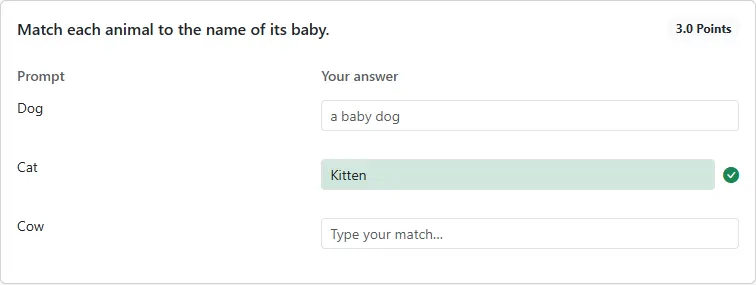
The moment the typed answer matches, that row's box turns light green and a checkmark appears beside it. The learner can keep typing or move on to the remaining rows.
The browser sends only the current row's typed text for checking, debounced while the learner is still typing, and never receives the answer key. Correctness is decided on the server.
Important boundaries
- The checkmark is never the only signal: a screen-reader announcement reports the correct state, and the same controls work at mobile widths and in embedded quizzes. People who prefer reduced motion receive the state change without the fade animation.
- For the dropdown version of this workflow, see Matching questions with immediate feedback.