An embedded image is part of the feedback text itself. It can sit between two paragraphs, travels with copied and exported questions, needs no media-library entry, and cannot break when a media asset is deleted.
Choose embedded or attached
Attached feedback images stay in the media library and can now be placed inside Markdown by position or stable ID. Attachments without a placeholder still appear below the feedback text.
| Comparison aspect | Embedded | Attached |
|---|---|---|
| Placement | Anywhere in the text | Inline by placeholder, otherwise below the text |
| Lives in | The feedback text | The media library |
| Size | Counts toward 65,536 characters | No limit from the text |
| Caching | None | Cached |
| Needs | Nothing extra | Upload and media:write |
Use a feedback-image placeholder for a reusable or larger attachment that belongs at one exact point. Use base64 embedding for a small self-contained diagram. Both open in the click-to-expand lightbox.
**Step 2 — trace it**

Prepare the image so it fits
Base64 adds about 33% to the file size, and the entire data URL counts as feedback text. Optimize before encoding.
- Export at the width it will be shown—about 1,000–1,100 pixels is usually enough.
- Reduce colours for diagrams; quantizing a PNG to 32 colours is often very effective.
- Try WebP when it produces a smaller readable image, and use data:image/webp in the URL.
- Keep the base64 text well below 60,000 characters so the surrounding explanation still fits.
Generate the base64 data URL
Run one of these commands locally. The result begins with the MIME type and contains the image bytes as base64 text.
PowerShell
"data:image/png;base64," + [Convert]::ToBase64String(
  [IO.File]::ReadAllBytes("fig.png")) | Set-Clipboard
macOS / Linux
# Linux (install xclip if it is not available)
printf 'data:image/png;base64,%s' "$(base64 -w0 fig.png)" | xclip -selection clipboard

# macOS
printf 'data:image/png;base64,%s' "$(base64 -i fig.png)" | pbcopy
Python
import base64, io
from PIL import Image

img = Image.open("fig.png").convert("RGB").quantize(colors=32)
buf = io.BytesIO()
img.save(buf, format="PNG", optimize=True)
print("data:image/png;base64," + base64.b64encode(buf.getvalue()).decode())Insert the image in the editor
- Turn on Show question feedback, then switch Allow Markdown formatting on.
- Paste  on its own line, with a blank line before and after it.
- Choose Preview feedback and confirm that the image appears at the intended place.
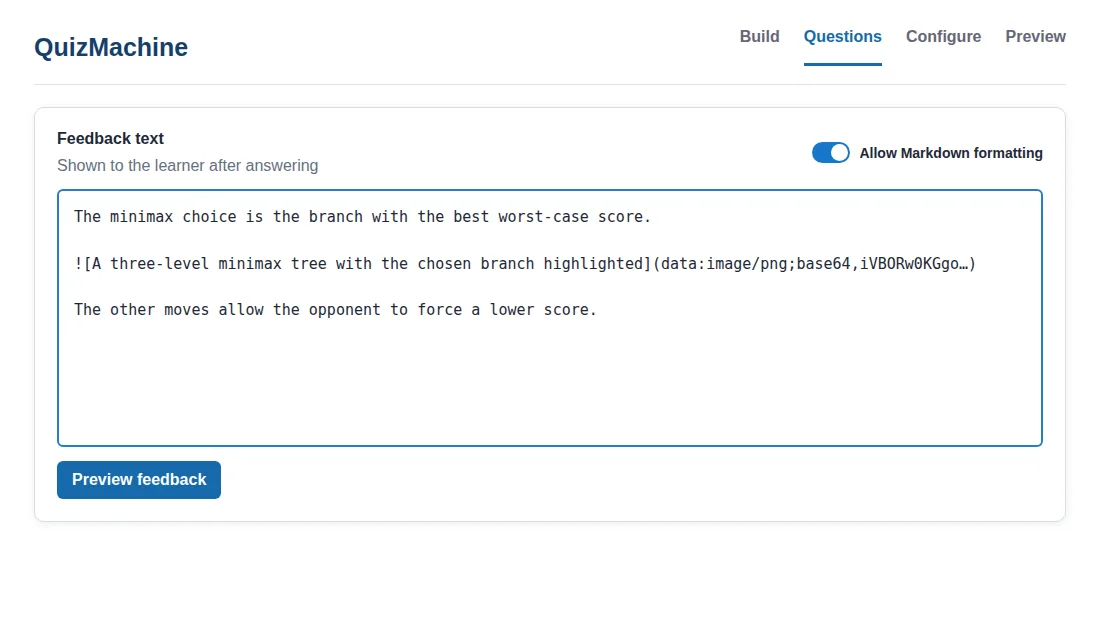
The minimax choice is the branch with the best worst-case score.

The other moves allow the opponent to force a lower score.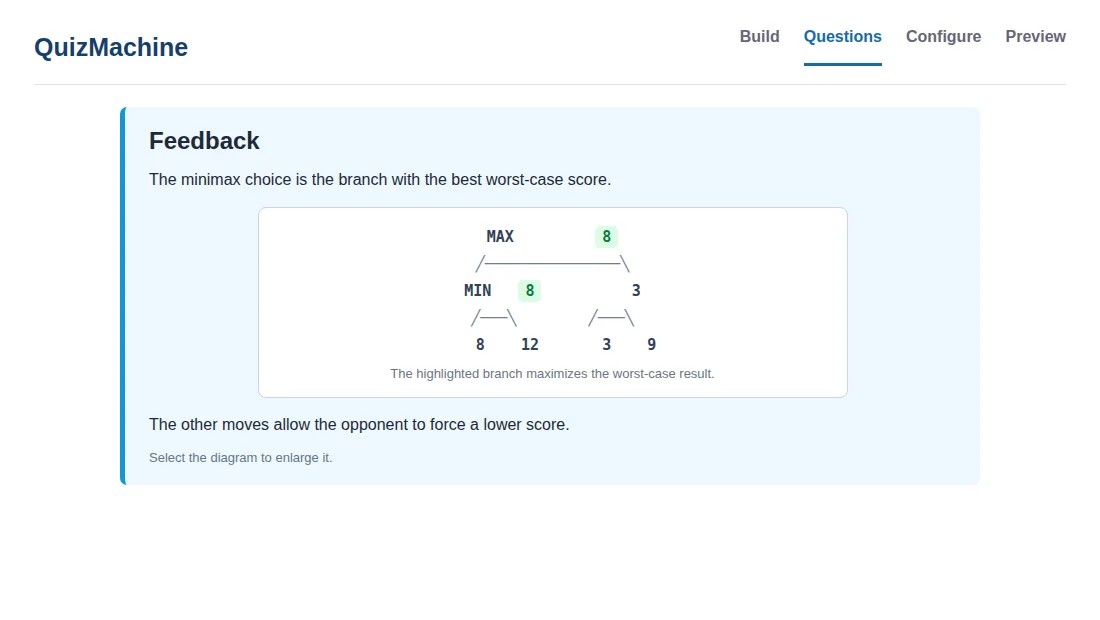
Common mistakes
- A bare data: URL is displayed as text. It must be inside .
- Missing blank lines can make the image join the surrounding paragraph.
- If saving reports that feedback exceeds 65,536 characters, reduce the image or attach it instead.
- Rich-text mode does not interpret Markdown image syntax. Turn Markdown formatting on.
Insert the image through API v1
Create the question, read the current ETag, and then send a JSON Merge Patch that enables Markdown and inserts the data URL in feedbackText. This needs quiz:write, but not media:write.
curl
# Create the question first and retain the response ETag.
created=$(curl -sS -D create-headers.txt -X POST \
"https://dev-quizmachine.covecode.net/api/v1/quizzes/$QUIZ_ID/questions" \
-H "Authorization: Bearer $TOKEN" -H "If-Match: $QUIZ_ETAG" \
-H "Content-Type: application/json" \
-d '{"pageNumber":1,"type":"FreeText","body":"Which move is best?","points":1}')
QUESTION_ID=$(printf '%s' "$created" | jq -r '.question.id')
ETAG=$(awk 'tolower($1) == "etag:" {gsub(/\r/,""); print $2}' create-headers.txt)
DATA_URL=$(printf 'data:image/png;base64,%s' "$(base64 -w0 fig.png)")
jq -n --arg feedback "The idea in plain words.\n\n\n\nWhy the other options are wrong." \
'{showFeedback:true,feedbackText:$feedback,feedbackAllowMarkdown:true}' > feedback-patch.json
curl -sS -X PATCH \
"https://dev-quizmachine.covecode.net/api/v1/quizzes/$QUIZ_ID/questions/$QUESTION_ID" \
-H "Authorization: Bearer $TOKEN" -H "If-Match: $ETAG" \
-H "Content-Type: application/merge-patch+json" \
--data-binary @feedback-patch.jsonPowerShell
$created = Invoke-WebRequest -Method Post `
-Uri "https://dev-quizmachine.covecode.net/api/v1/quizzes/$quizId/questions" `
-Headers $headers -ContentType 'application/json' `
-Body '{"pageNumber":1,"type":"FreeText","body":"Which move is best?","points":1}'
$createdQuestion = $created.Content | ConvertFrom-Json
$dataUrl = "data:image/png;base64," + [Convert]::ToBase64String([IO.File]::ReadAllBytes("fig.png"))
$feedback = "The idea in plain words.`n`n`n`nWhy the other options are wrong."
$patch = @{ showFeedback=$true; feedbackText=$feedback; feedbackAllowMarkdown=$true } | ConvertTo-Json
Invoke-RestMethod -Method Patch `
-Uri "https://dev-quizmachine.covecode.net/api/v1/quizzes/$quizId/questions/$($createdQuestion.question.id)" `
-Headers ($headers + @{ 'If-Match'=$created.Headers.ETag }) `
-ContentType 'application/merge-patch+json' -Body $patchPython helper
import base64, json
def feedback_patch(template, image_path, alt_text):
with open(image_path, "rb") as image:
data_url = "data:image/png;base64," + base64.b64encode(image.read()).decode()
markdown_image = f""
return json.dumps({
"feedbackText": template.replace("{image}", markdown_image),
"feedbackAllowMarkdown": True,
"showFeedback": True,
})
print(feedback_patch(
"The idea in plain words.\n\n{image}\n\nWhy the other options are wrong.",
"fig.png",
"Three-level minimax tree with the selected branch highlighted",
))Read the quiz back and verify both feedbackText and feedbackAllowMarkdown. Then preview the question to check the rendered position and lightbox.
curl -sS "https://dev-quizmachine.covecode.net/api/v1/quizzes/$QUIZ_ID?media=references" \
  -H "Authorization: Bearer $TOKEN" | \
  jq --arg id "$QUESTION_ID" '.quiz.questions[] | select(.id == $id) | {feedbackText,feedbackAllowMarkdown}'
Accessibility
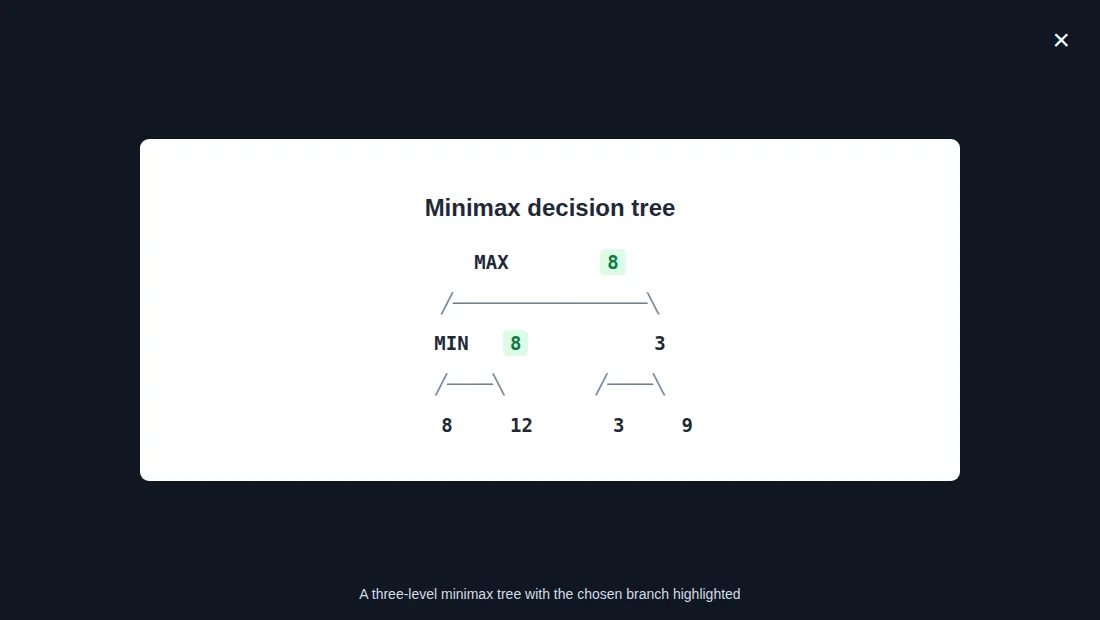
Write alt text that explains what the diagram shows, not merely “image.” Keep labels and other text inside the image readable at feedback width. Selecting the rendered image opens the same fullscreen lightbox as an attachment.
Troubleshooting checklist
- Text appears instead of an image: check the  syntax and Markdown setting.
- HTTP 400 or a length error: inspect the base64 character count, reduce colours or dimensions, or attach the image.
- The image is blurry: export near its display width rather than enlarging a small source.
- The lightbox does not open: preview the rendered feedback and select the image itself; an image wrapped in a Markdown link follows that link instead.
Continue with
Use Markdown in questions and answer options
and
Create quizzes programmatically with the QuizMachine API.
Mermaid diagrams in questions and feedback.